Creating a lead
To create a lead, go to the Pipeline section on the lefthand black menu. This will take you to the overview of your pipeline. Navigate to the right hand side the heading and click ‘+ Create new lead’.
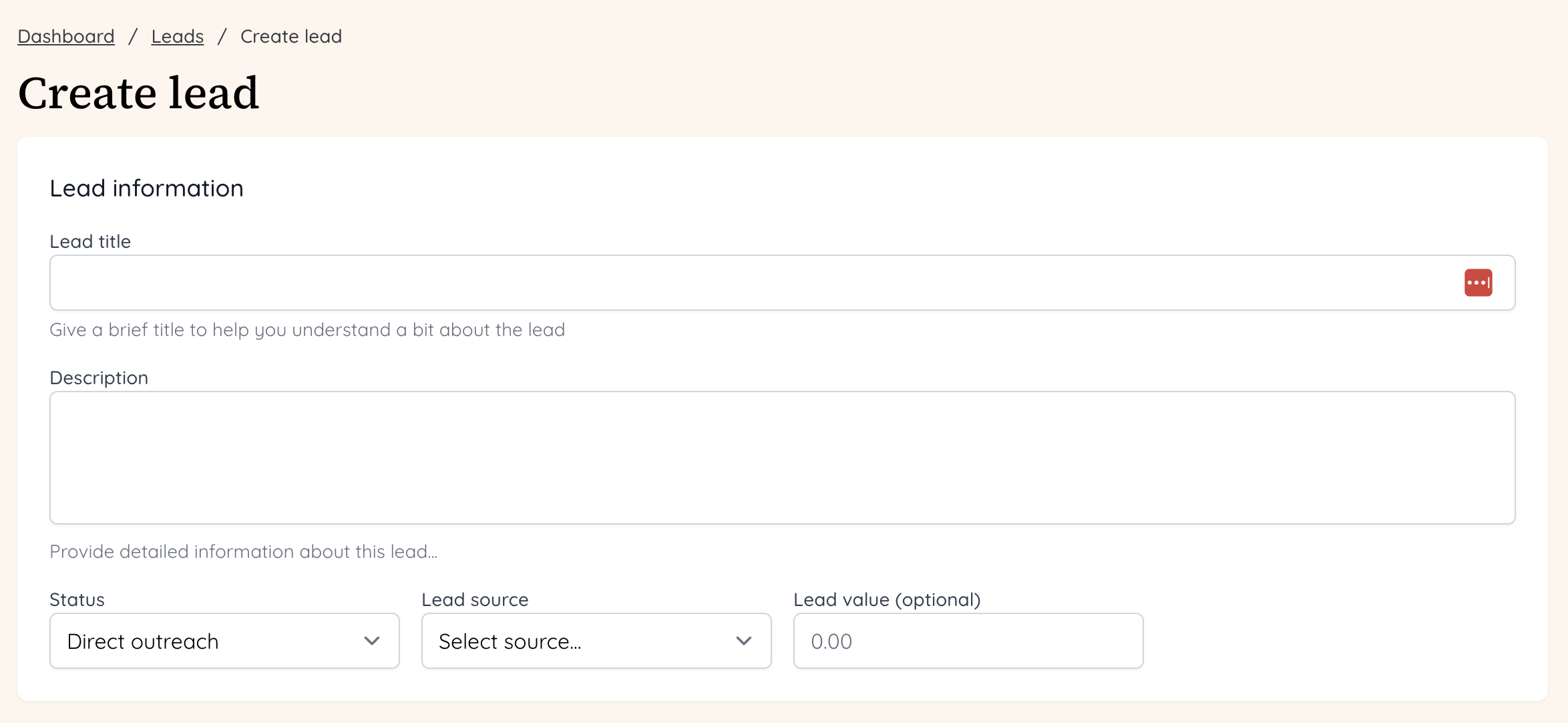
 This will bring up a page to create the lead. You don’t need to add in a lot of information immediately, and you can always edit it later on. You can add a title description, status, lead source and value in the lead information box.
 You can now select an existing organisation from your CRM, or select to create an organisation.
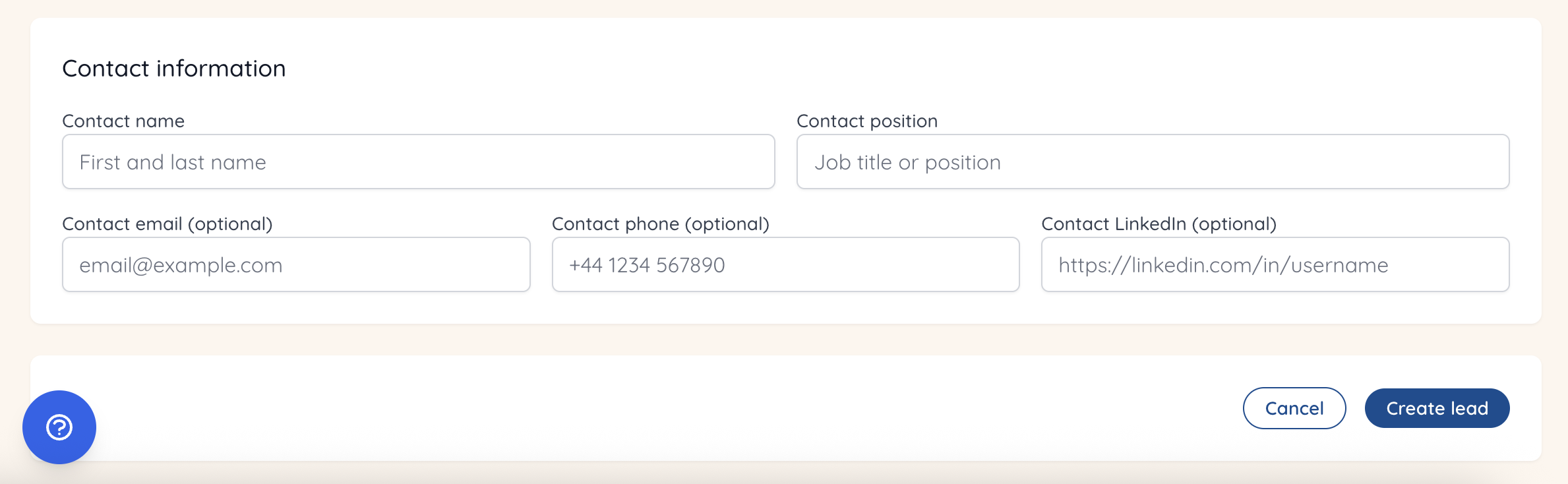
 Add contact information - you can simply add a name and position at this point. Then click ‘Create lead’.
 You’ll now be taken to the lead overview page, where a modal will appear to qualify your lead. This will be based on questions you’ve set in the pipeline section of your team settings.
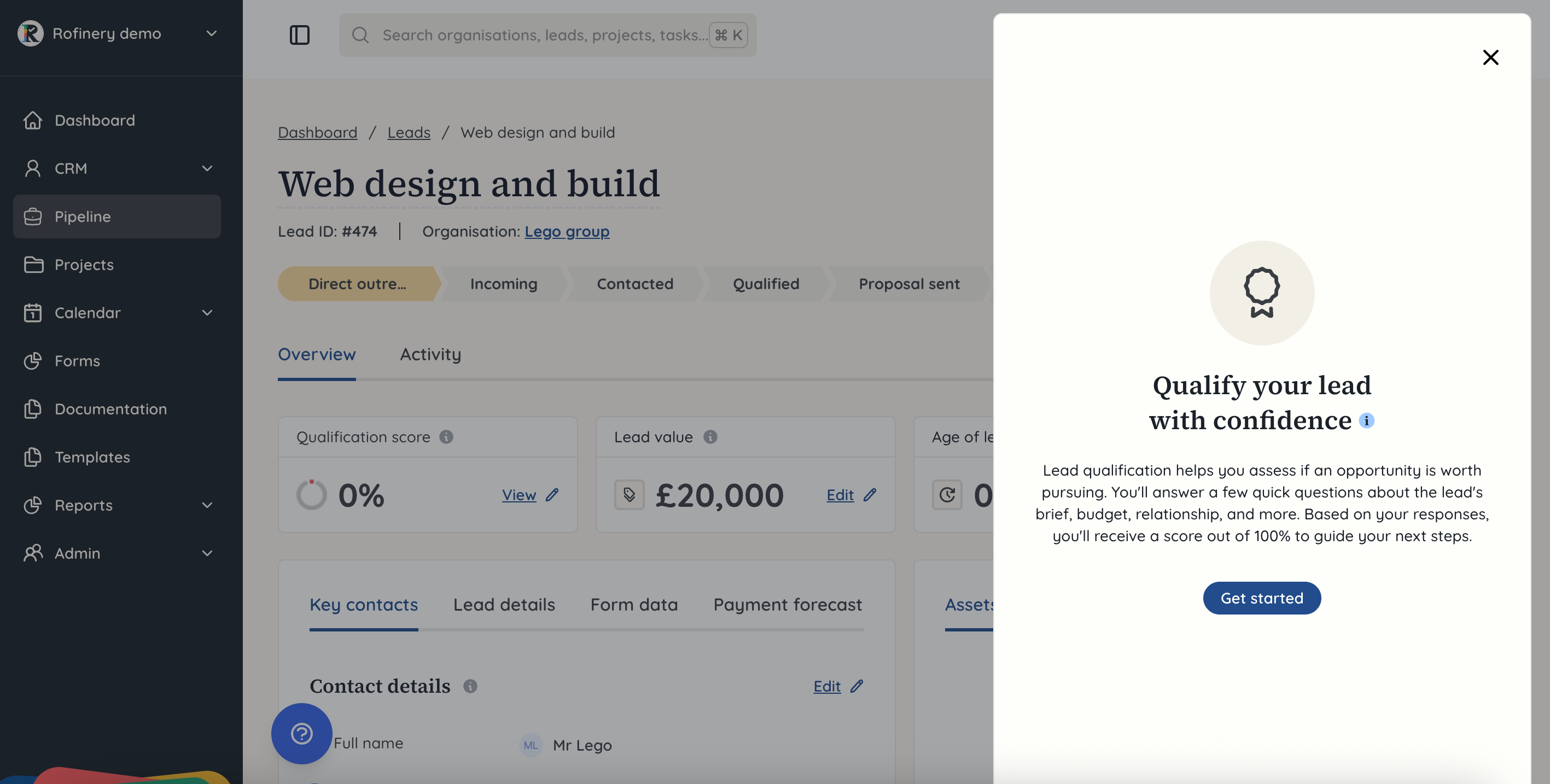 Go through the questions and then at the end you’ll be given a score to help you understand whether you can do anything to try to improve the lead, or whether you need to spend time prioritising other leads.
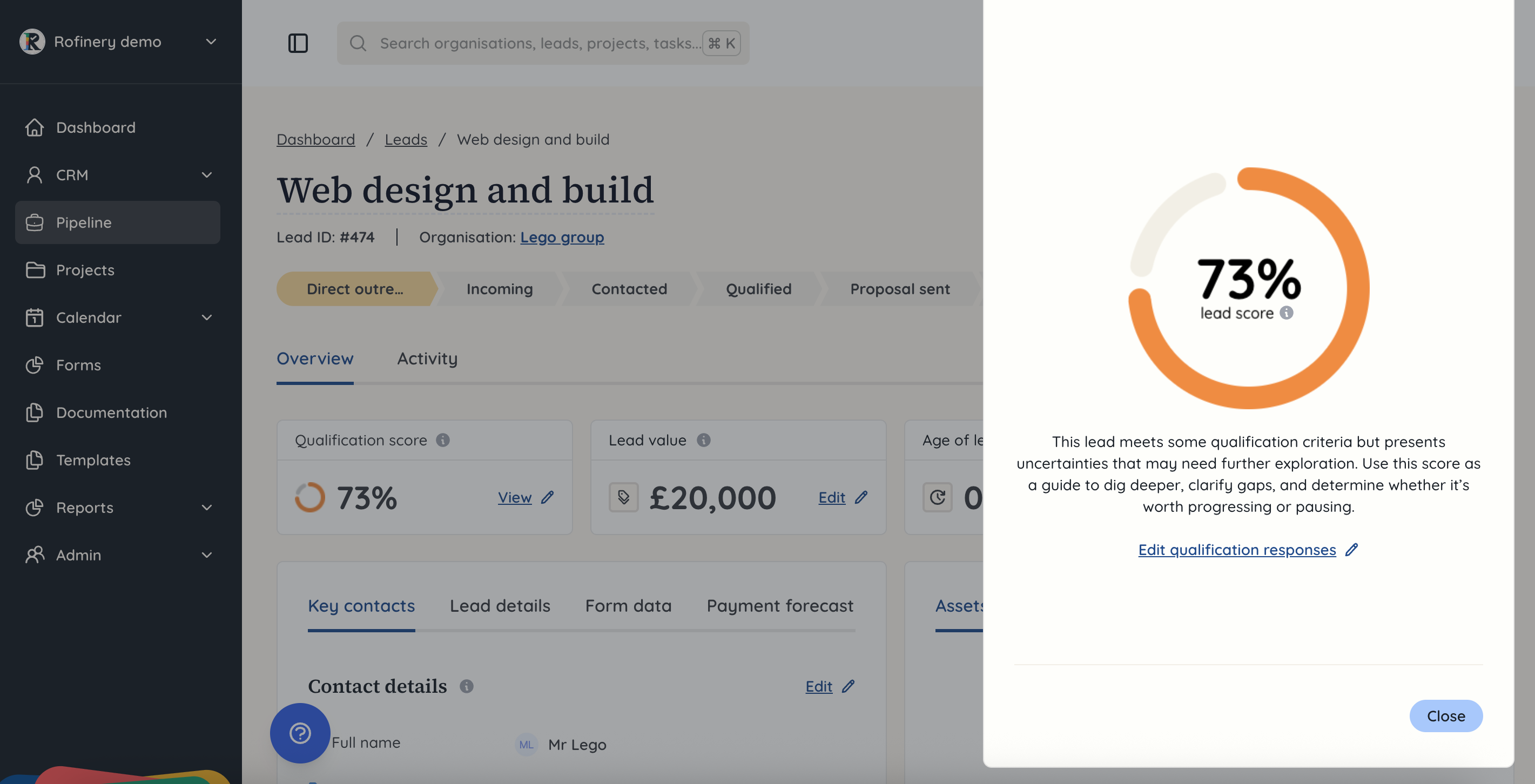 You’ll now see your overview page updated and at the top, it has four key figures for the score, value, age of lead and activity.
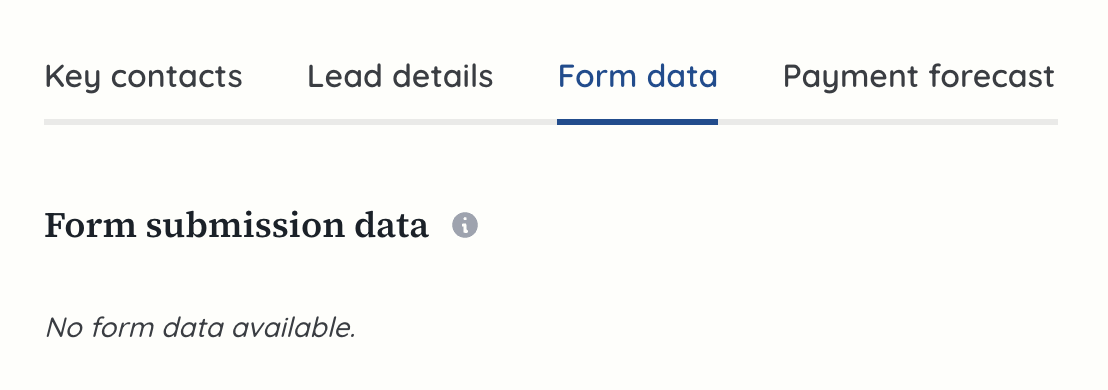
 Below this section you have a box on the left hand side with a number of tabs in it. The first is for key contacts, which includes for the organisation but also internally as to who the lead owner is. On the pipeline overview there will be a breakdown of leads by lead owner, to help see who is managing how many.
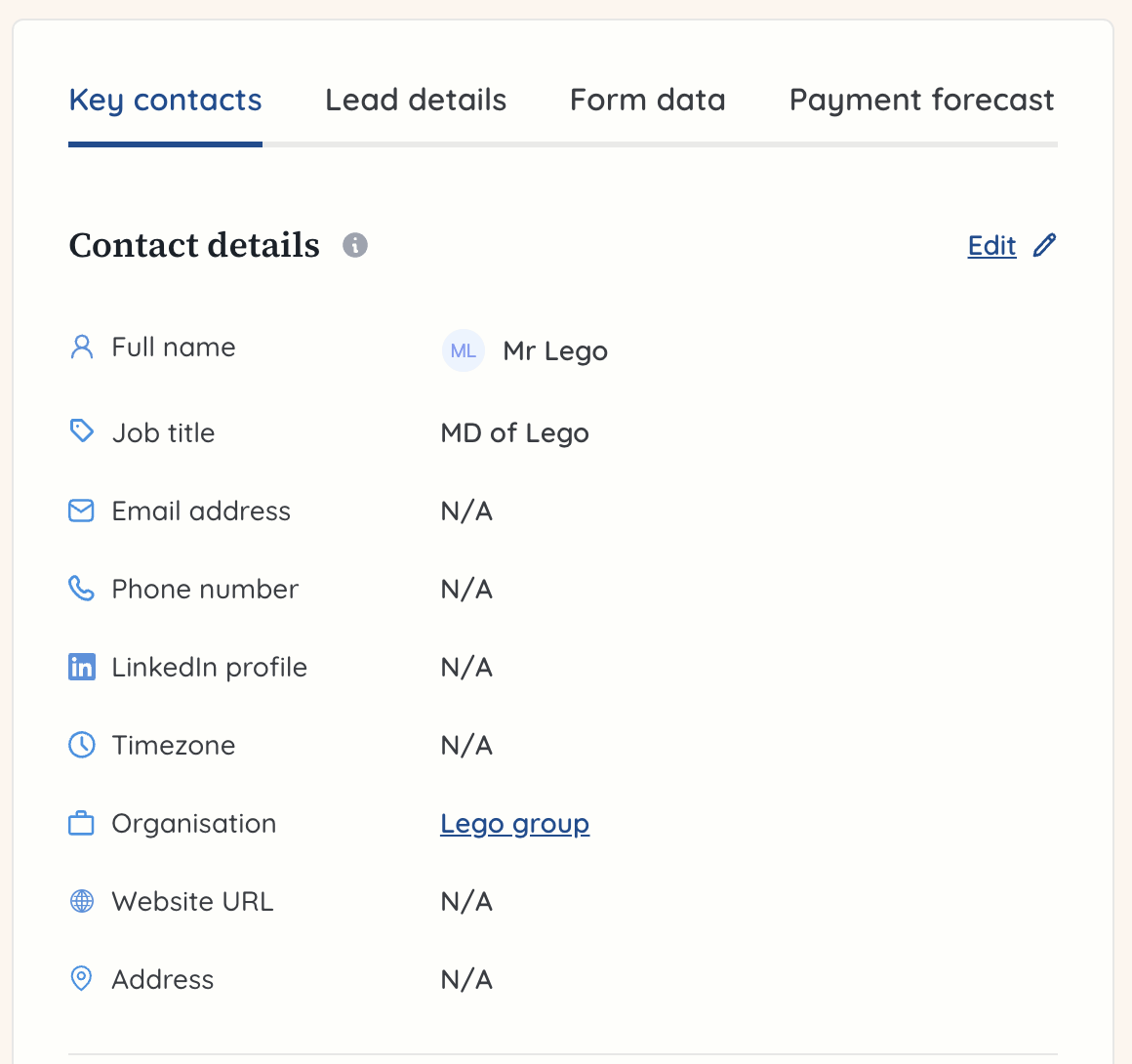 The lead details tab allows you to build on the information you initially added in the lead details.
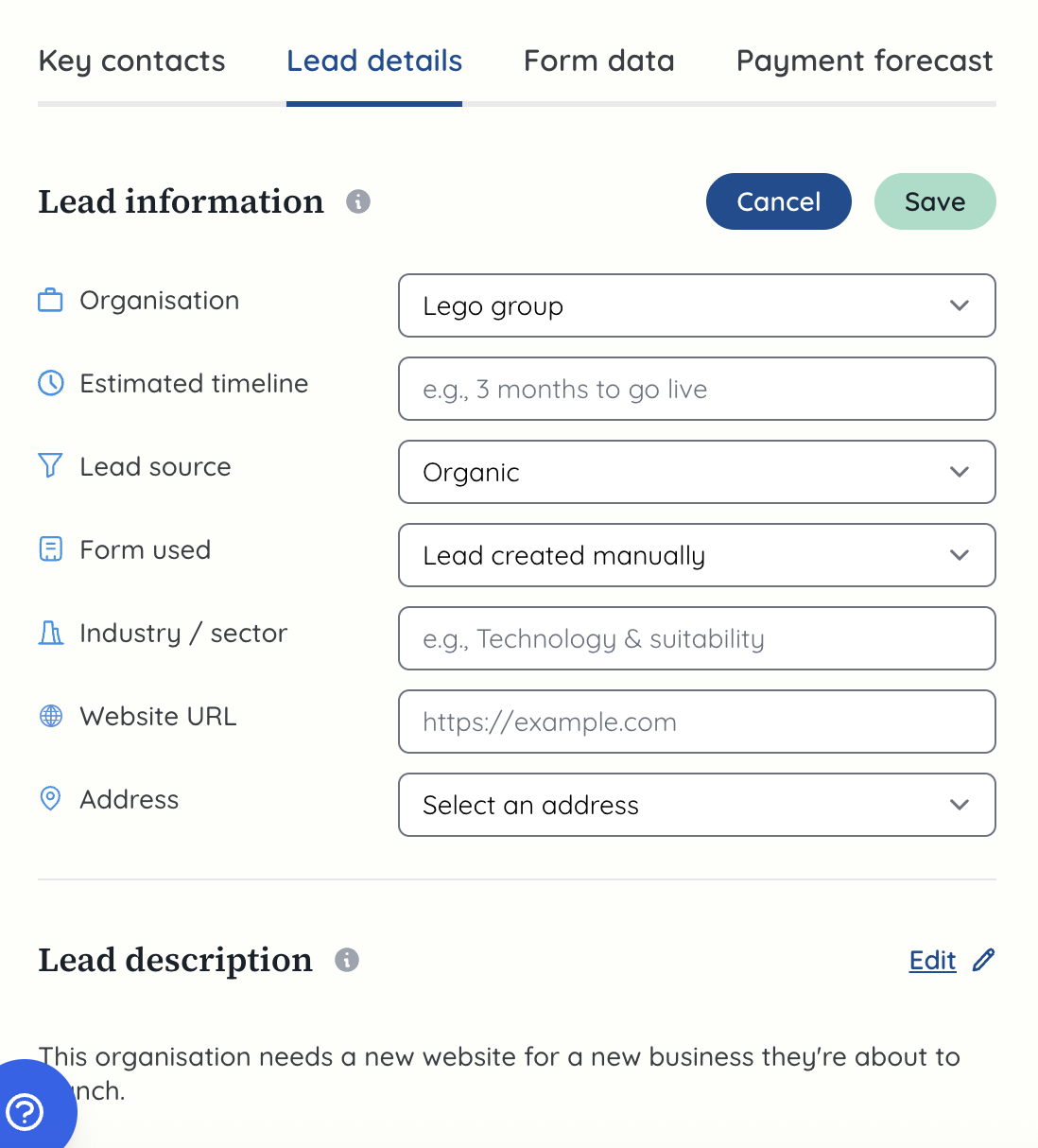 If the lead came through from a form (link coming soon to creating forms) then under the ‘Form data’ tab, it will show more detail about this.
 Under the tab ‘Payment forecast’ you can break down how you think the payments for the total would be broken up and when they’d fall. This helps you to understand when you expect the payments would be sent to the client, to help you get a picture of cashflow. On the pipeline overview, this will be pulled into a graph showing your leads by their score plus payments and also your target. That can give you a good idea of how likely those payments are and when they may fall.
(Image coming soon - in the process of getting an update!)
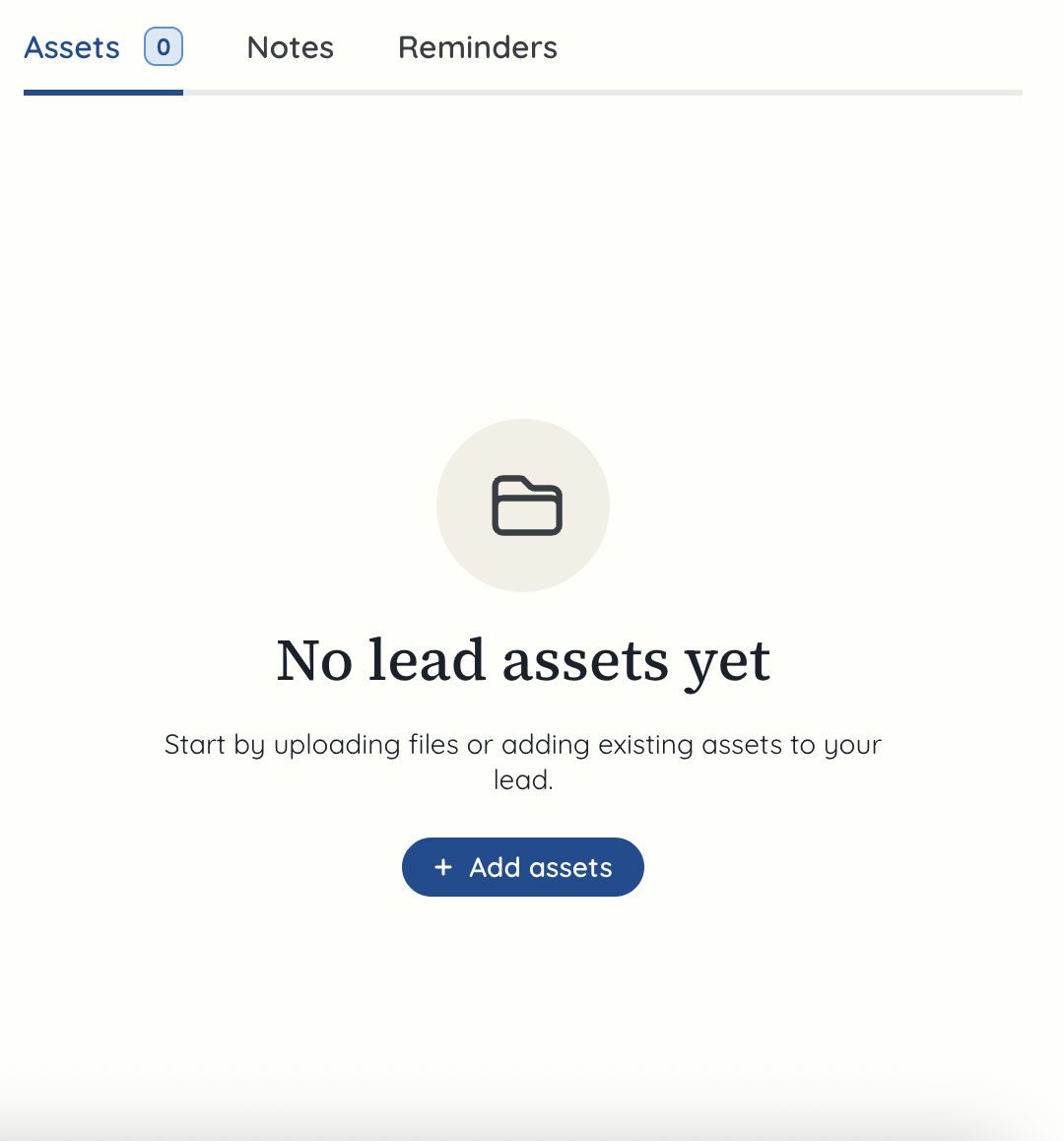
On the right of this box, there is another section for updating the lead. In the first tab you can add assets. This might be the specification for the lead, brand guidelines or any other documents.
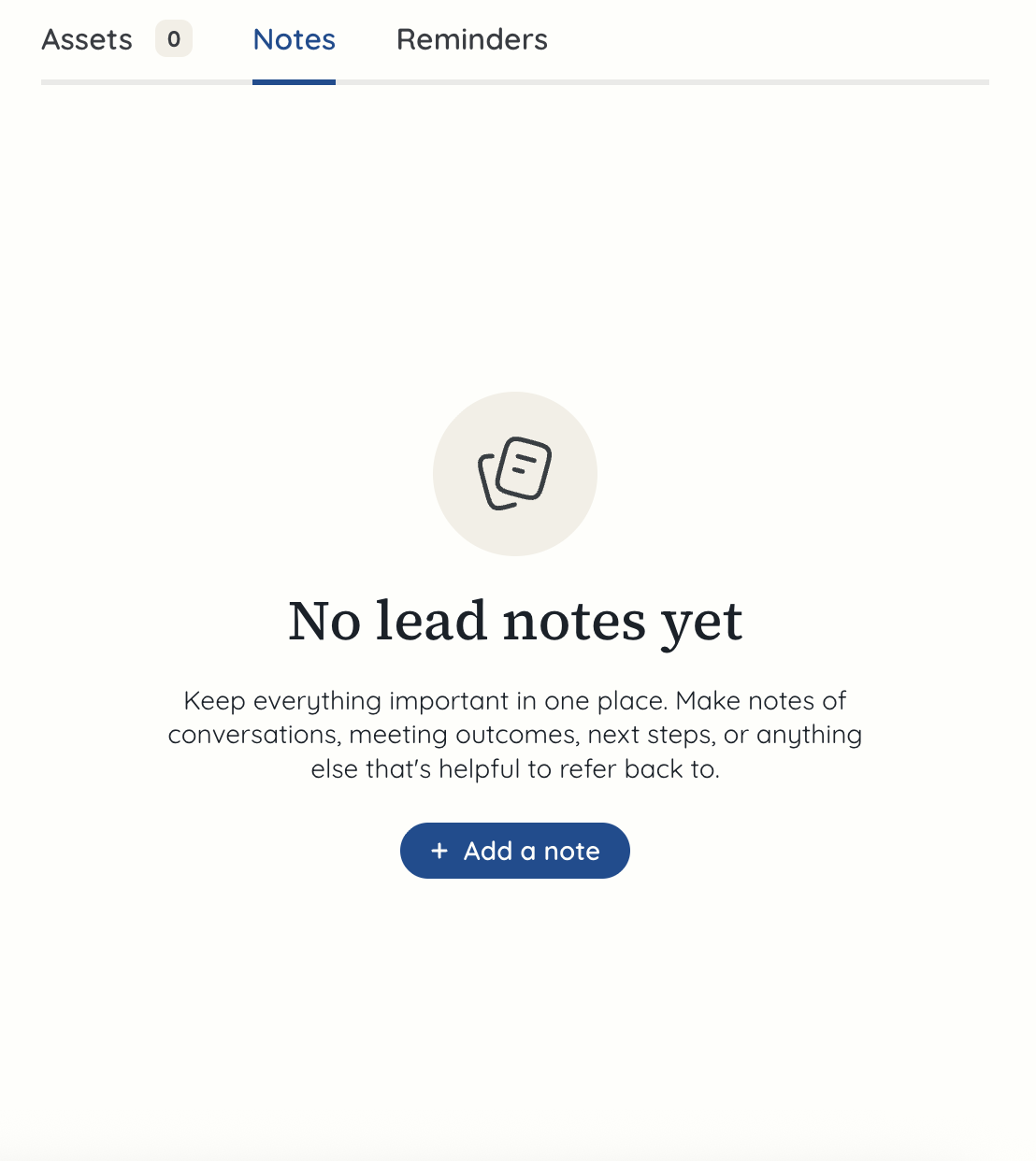
 Next up you have the ‘Notes’ tab. Here you can add any notes from calls, emails, discussions etc to help keep your team up to date and keep track of what has been discussed.
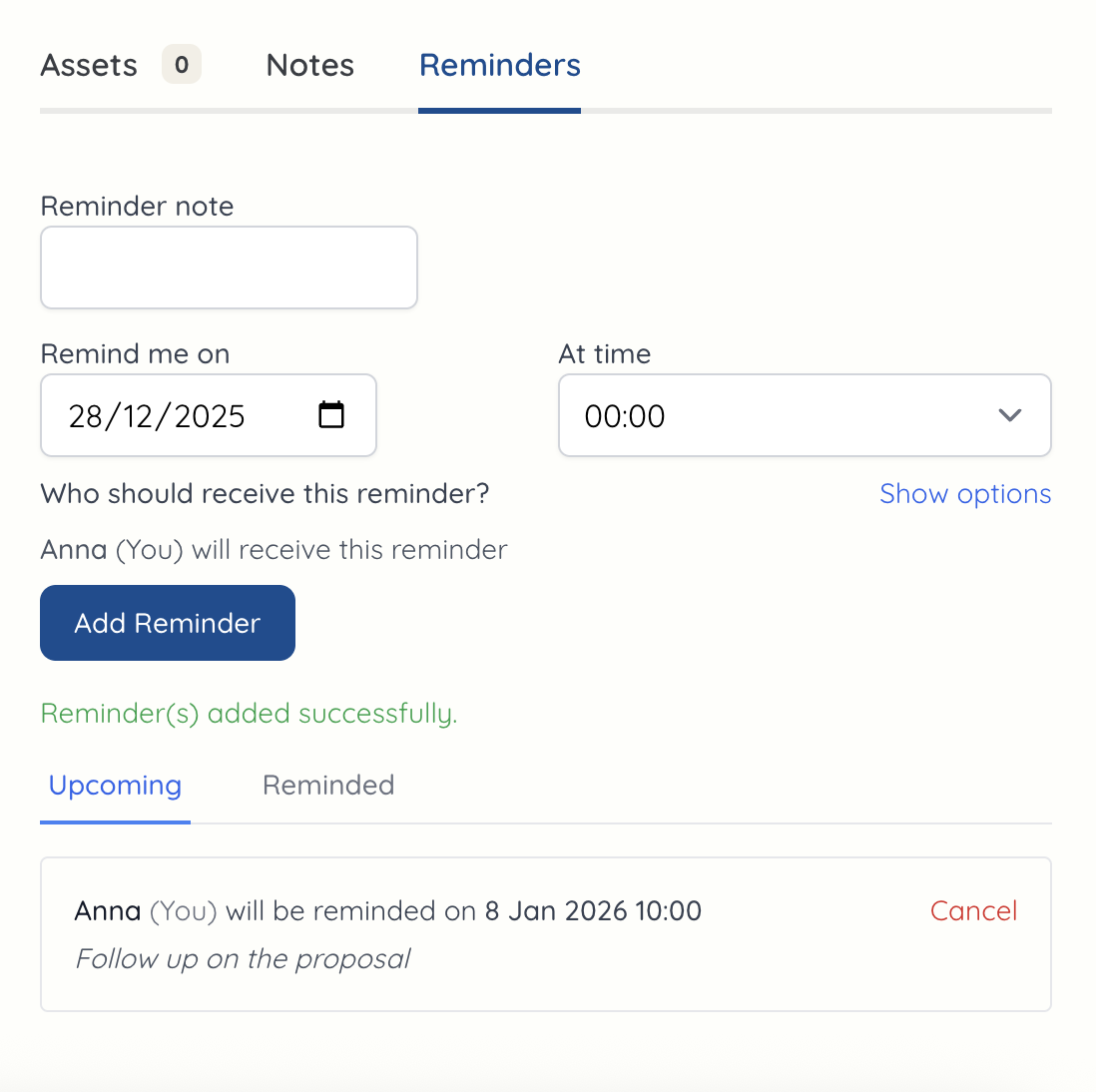
 Finally for this section, is the ‘Reminders’ tab. You can set a short description, a date, time and then who will get the reminder. You’ll see any scheduled reminders in ‘Upcoming’ and any past reminders in ‘Reminded’. This helps to ensure you’re following up but also can see how many times you’ve had to follow up.
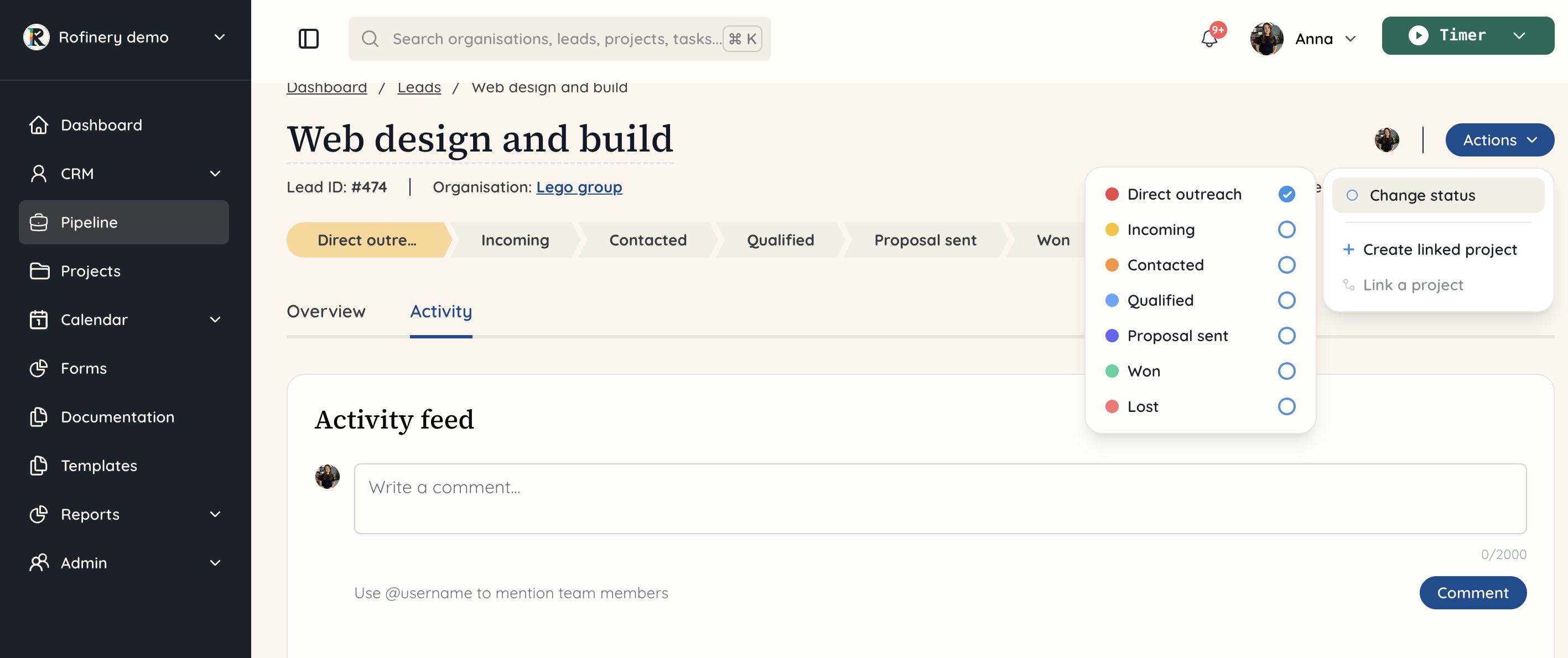
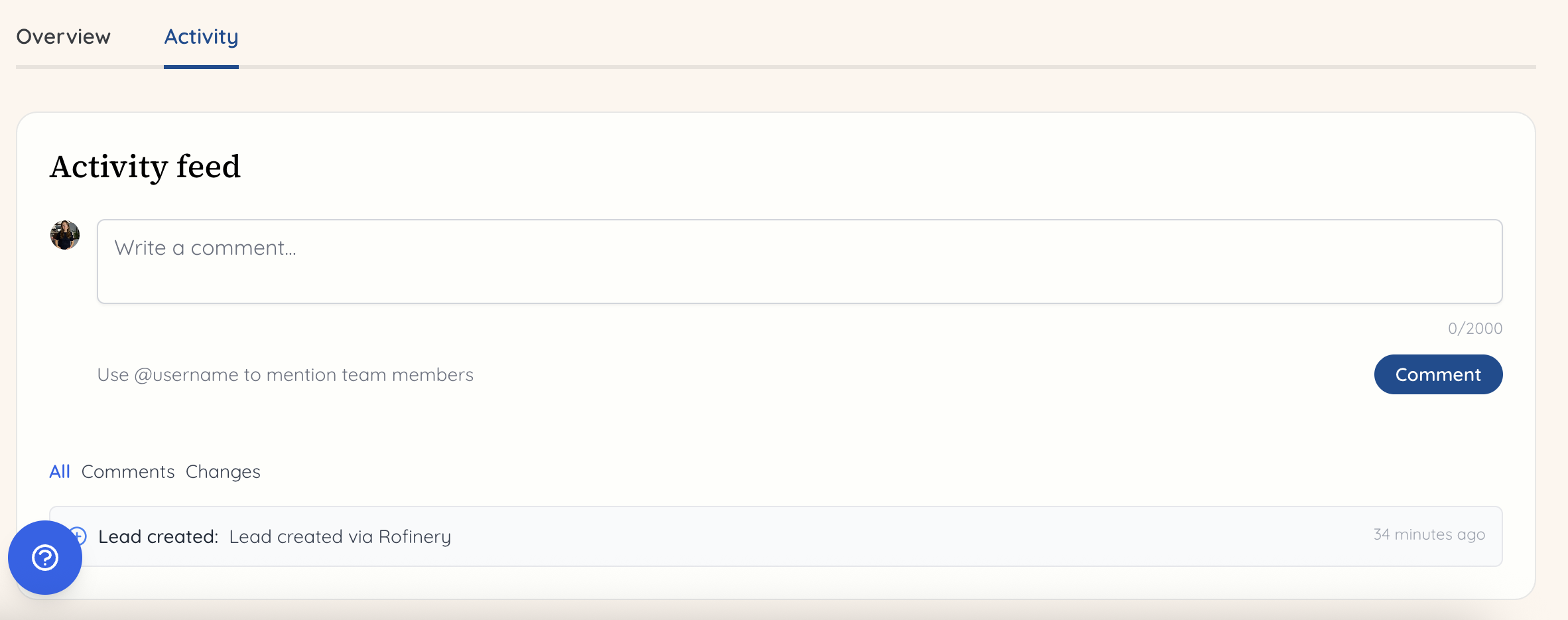
 Finally, at the top of the page you can see the activity section of the lead next to the ‘overview’ tab for it. This allows you to see anything that has been added or changed, but also to tag team members and write updates.
 At any time you can change the status of a lead. The statuses are set in the pipeline tab of your team settings. As you move the lead along the different statuses, it will turn each of them green as the aim is to get them to the end and set them as ‘won’. The pipeline overview will show the number of leads you have in each status in real-time, to help you get that view of how healthy your pipeline is and where you need to be trying to move leads to.