Creating a deliverable template
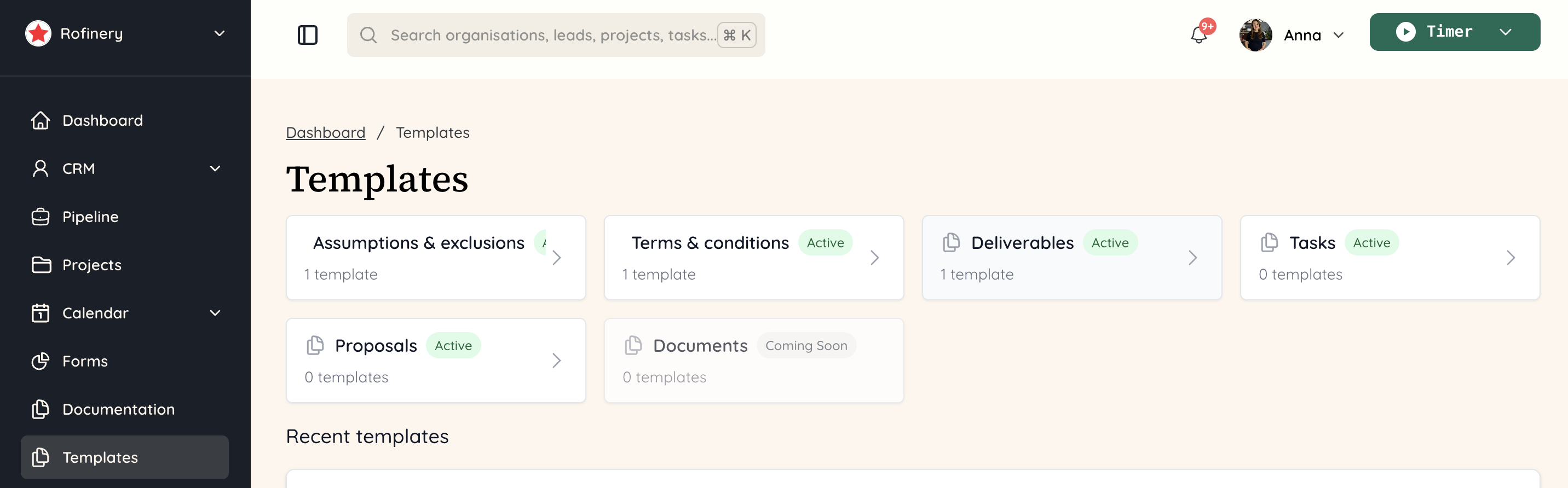
To create a template, first navigate to the 'Templates' section of Rofinery in the lefthand menu. From there, click on 'Deliverables'.
 You will be able to see any deliverables templates you've created already, but also add new ones.
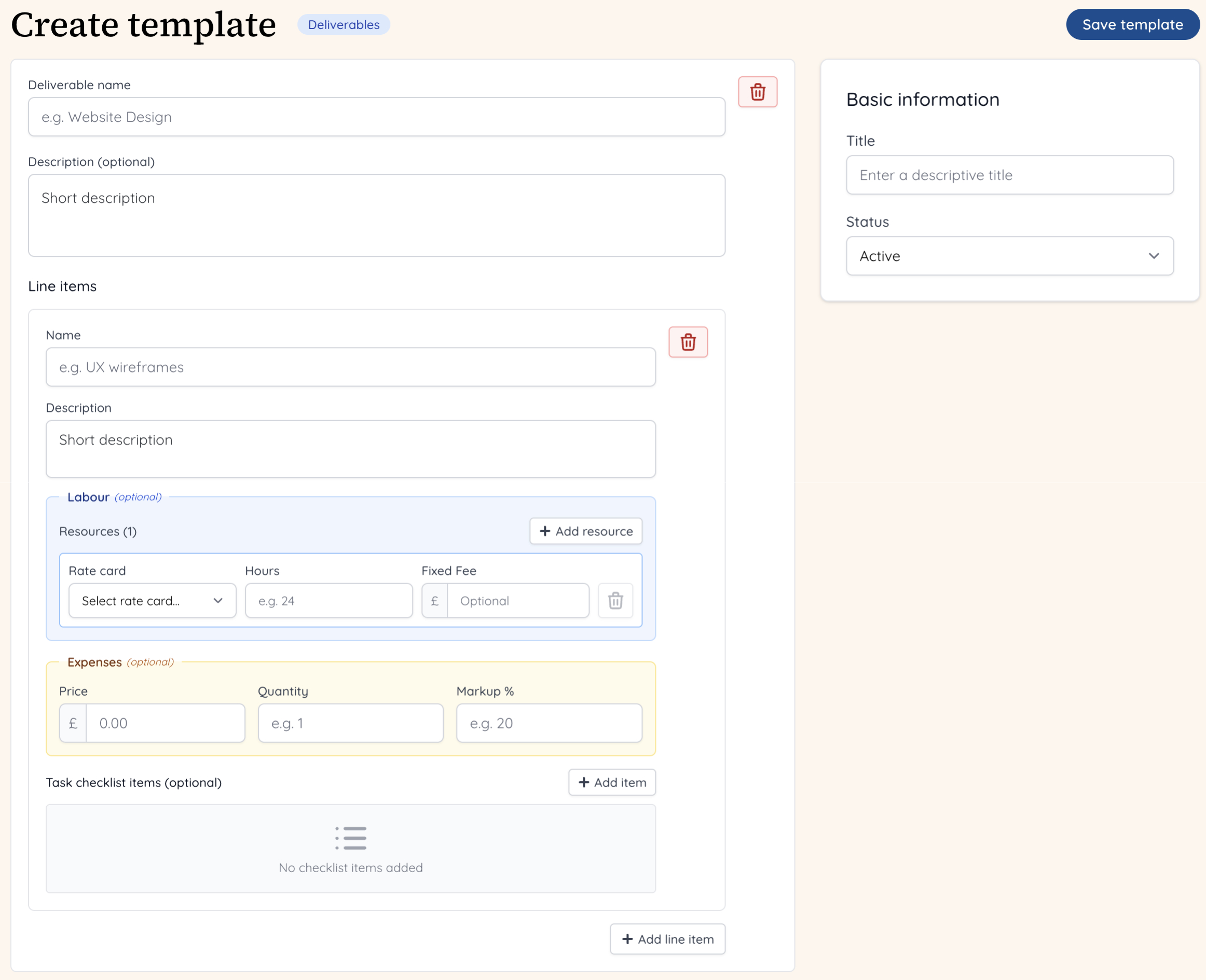
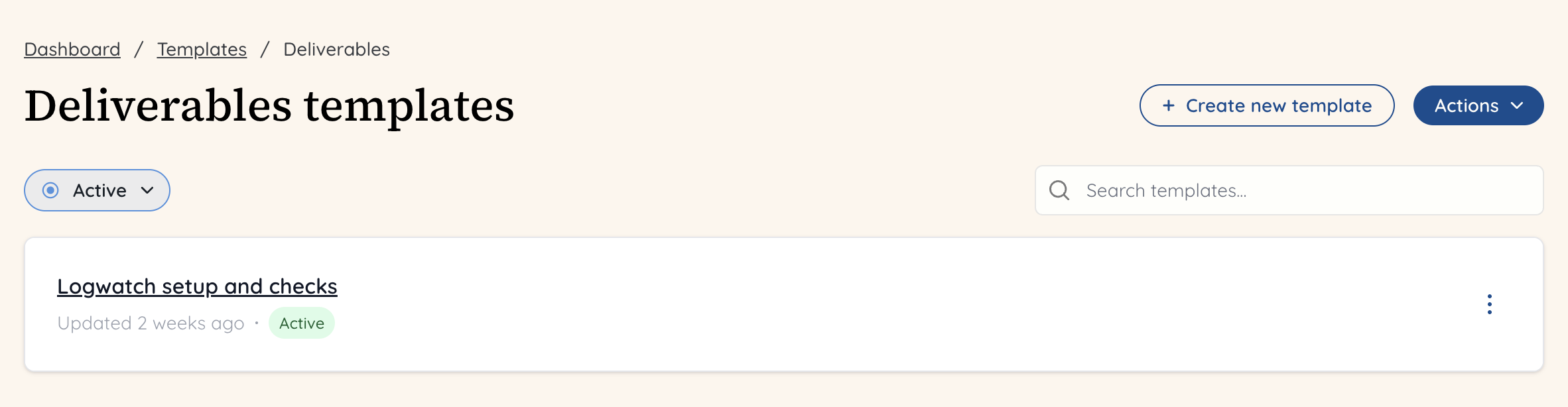 Click on '+ Create new template' and you will see a screen where you can add in the details to do build this out. On the right hand side you can give it a title - this is what will appear in the list of deliverable templates.
On the left hand side, you can give it a name and short description. The name is what will be pulled through into a proposal when you insert the deliverable template. The description will also pull through - that can always be tweaked and amended within the proposal.
You can add multiple line items - the first has fields ready for you to populate, but at the bottom of the screen there is a '+ Line item' button if you need to add more for the deliverable. You need to give each line item a name and then optional short description.
From there you can now add your resource - you can add more than one, for example if you have a designer and a senior designer working on a particular line item such as a homepage design. You need to pick a rate card for each resource, how many hours are being allocated and an optional fixed fee. Furthermore, you can add expenses to the line item, should you need to buy a license or pay for anything at all. Finally, you can add a task checklist to each line item - this will then be carried through when the deliverable is converted to a task after the proposal it is in is approved.
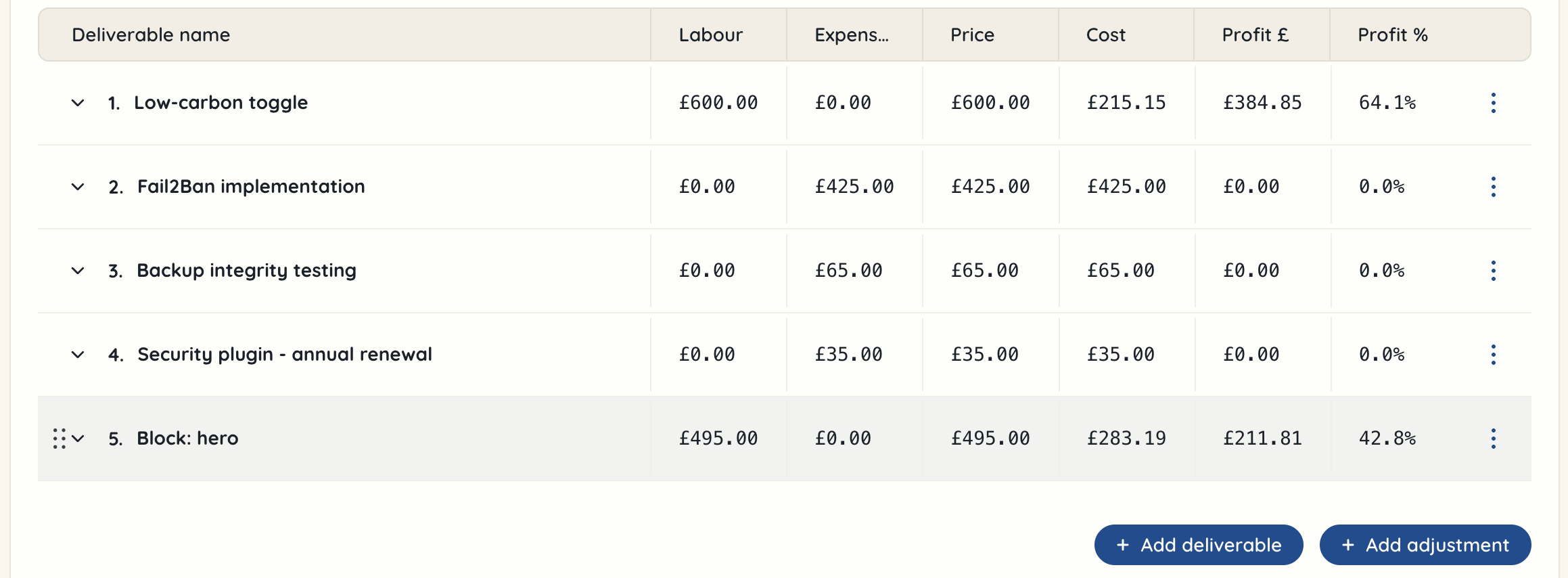
 At the end of the field, there is a '+ Add deliverable' button. Using this you can add more deliverables after the one you have just added. Alternatively, you can simply click 'Save template' at the top of the page on the right hand side and add deliverables one at a time to allow you to review each one separately.
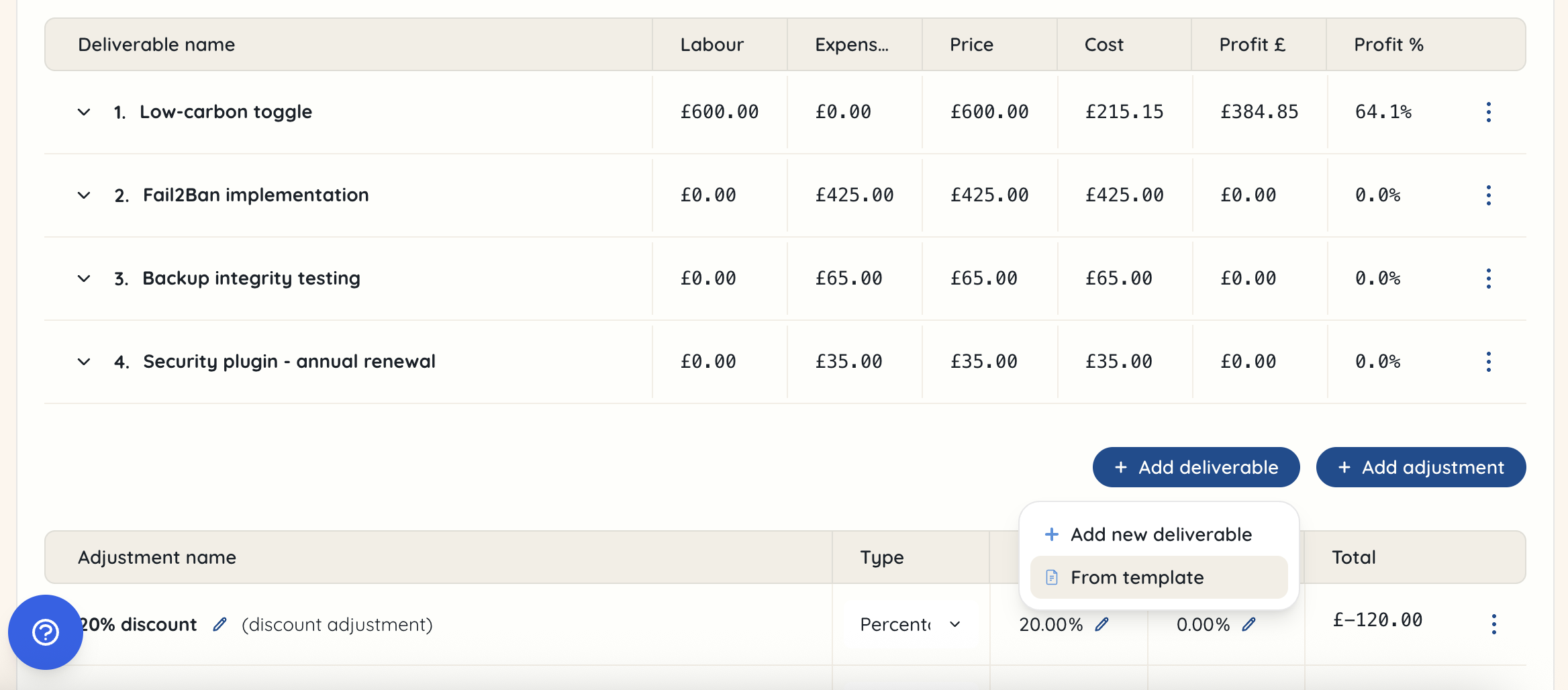
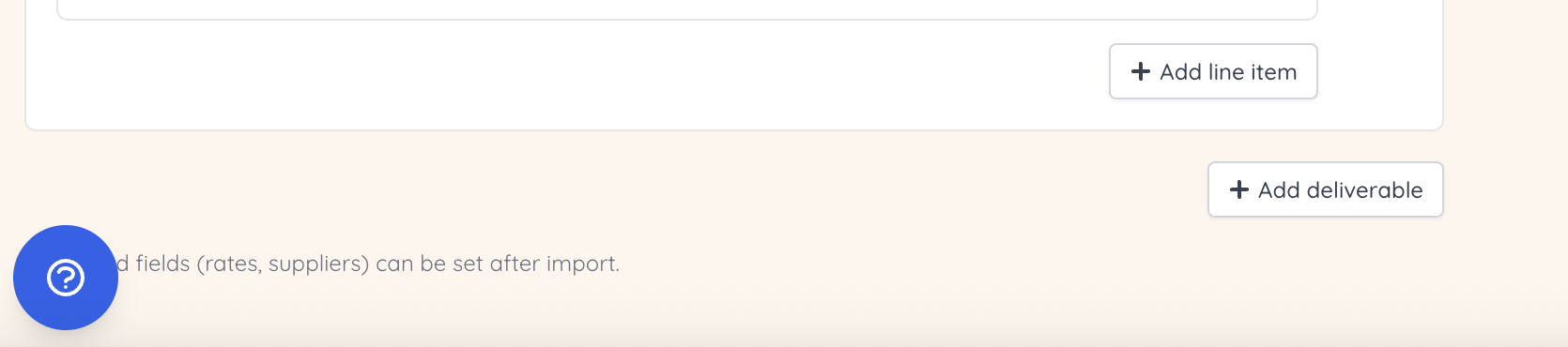 Once you have created a deliverable template, you can now add this into a proposal. Go to the proposal you want to add it to - either by creating a new one, or searching for the project where this will be added to. Scroll down to '+ Add deliverable' and in the dropdown, select 'From template'.
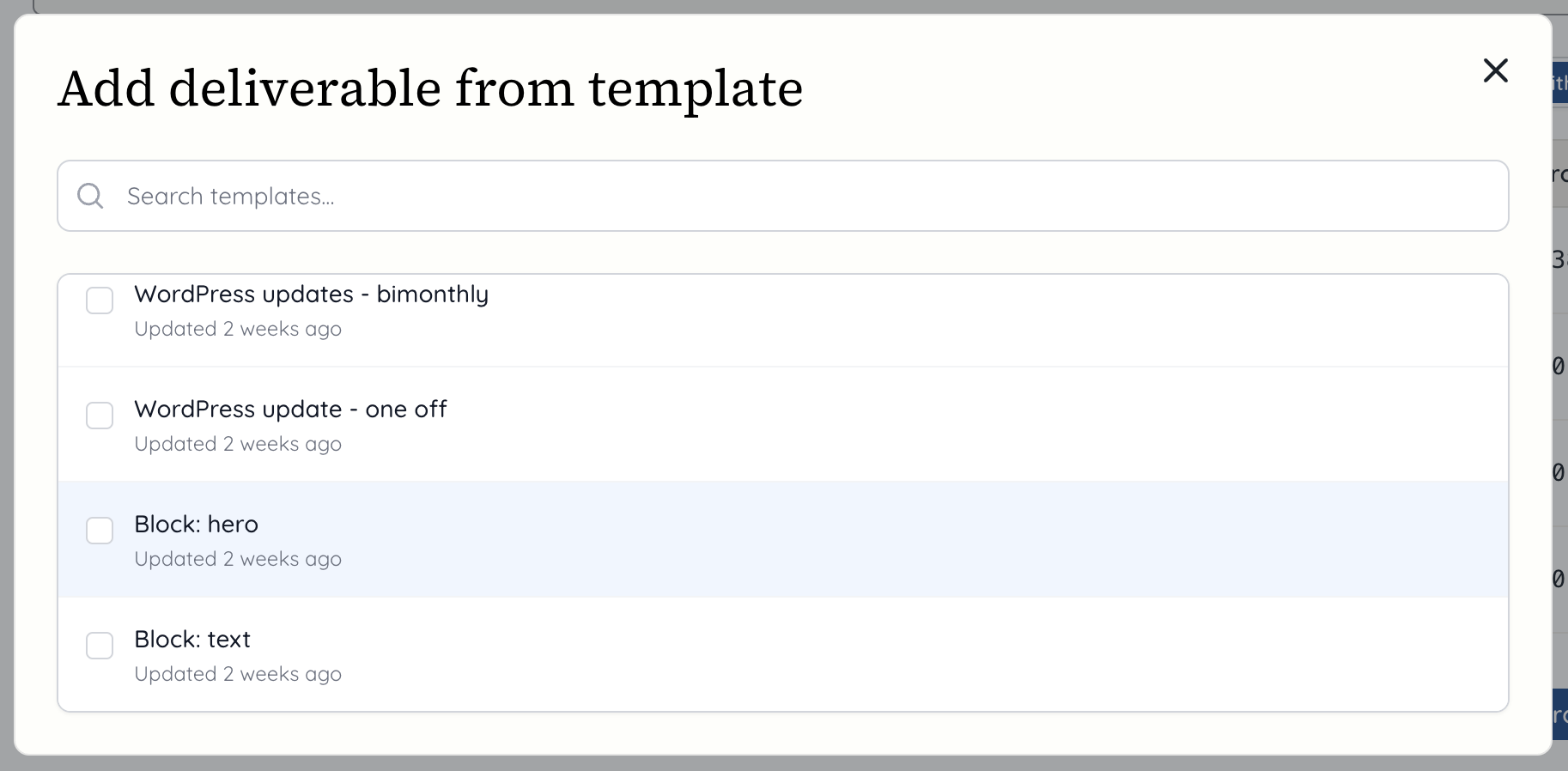
 Now you will have a modal appear, where you can see the full list of all your deliverable templates. Alternatively, if you have quite a lot, you can search the templates to find the one you're looking for. Click on the deliverable template you would like to add.
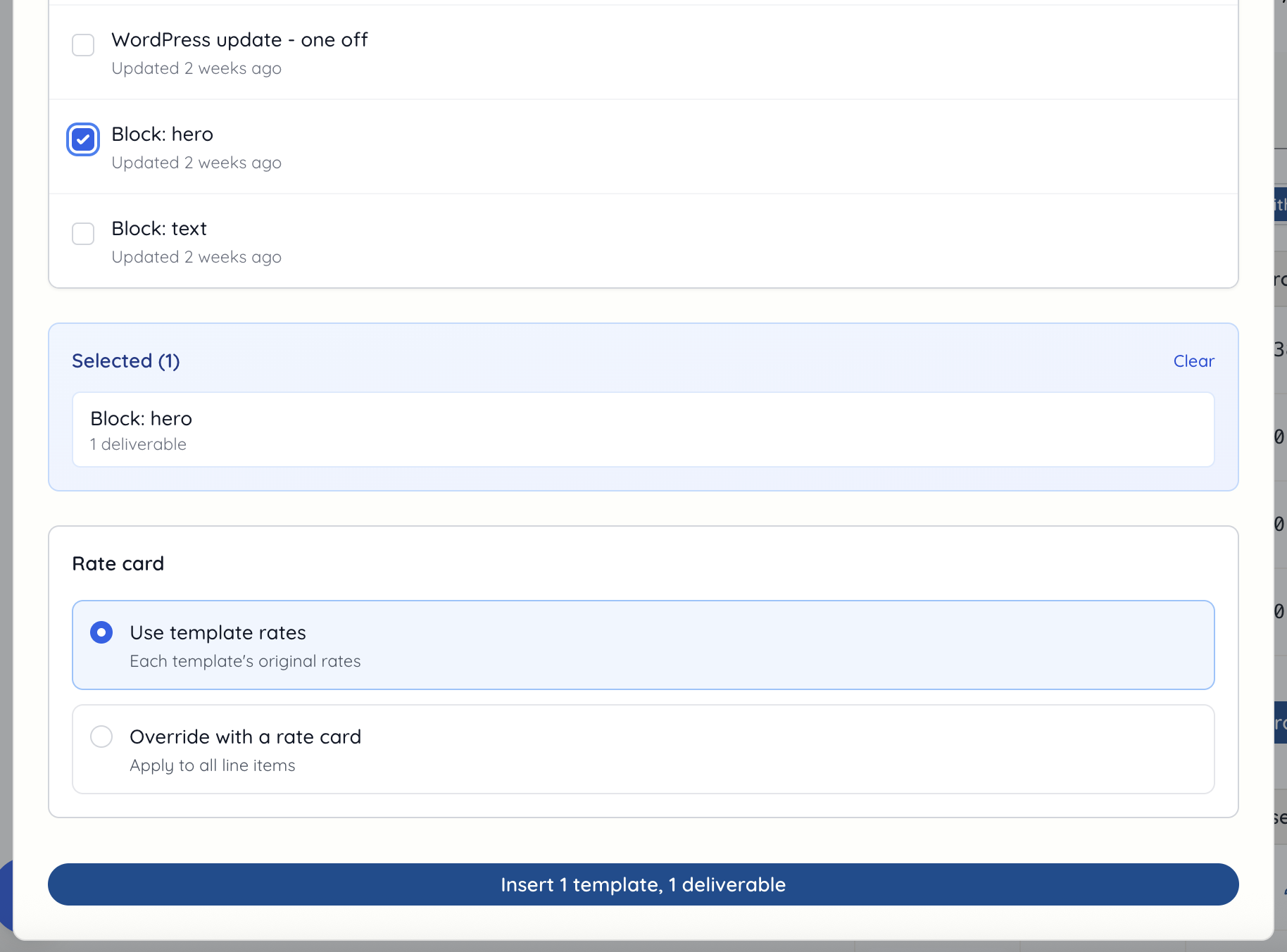
 This will then show you what you have selected and then give you an otion to use the template rates, which will apply the rate card you added to the template, or alternatively you can choose to override it with a different rate card. This might be if you are assigning a more senior or junior member of the team to the deliverable. Once you have made your selection, scroll down and click the 'Insert' button.
 You should now be able to see the deliverable in place on the proposal with the correct labour figures based on the template rate card and hours allocated to it. You can open this up as you would with any other deliverable and make changes, should you decide to increase the resouce or edit the description to tailor it to this proposal.