Creating terms and conditions templates
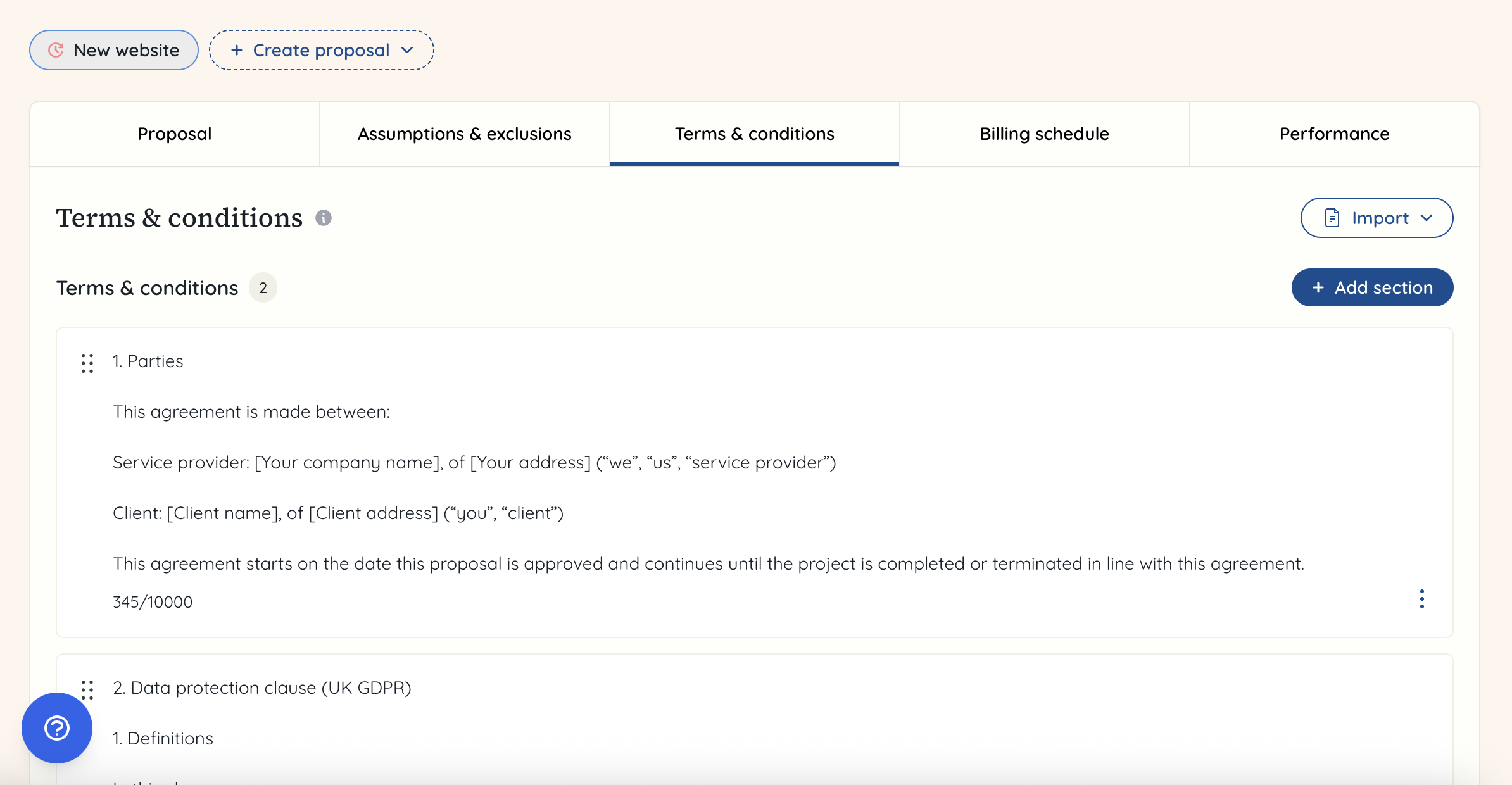
Terms and conditions can be added to a proposal being sent to a client or prospective client. This means the client approves them as part of the proposal, creating a contractual agreement for the work. It helps to save a step, by avoiding having to send out a separate contract. Alternatively, these could also be terms and conditions specific to the proposal, in cases where overarching contracts already exist.
To create a template for the terms and conditions, navigate to this section of Rofinery in the lefthand menu.
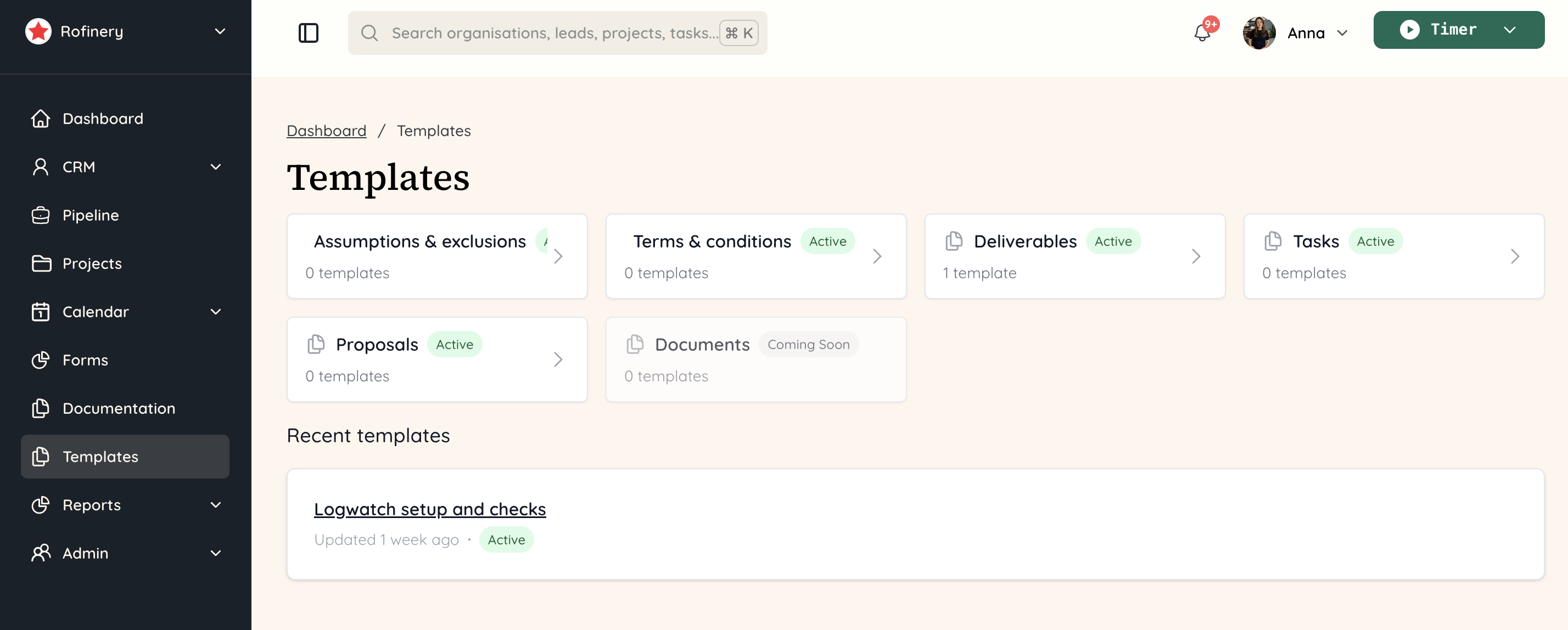 Click on the 'Terms & conditions' tab.
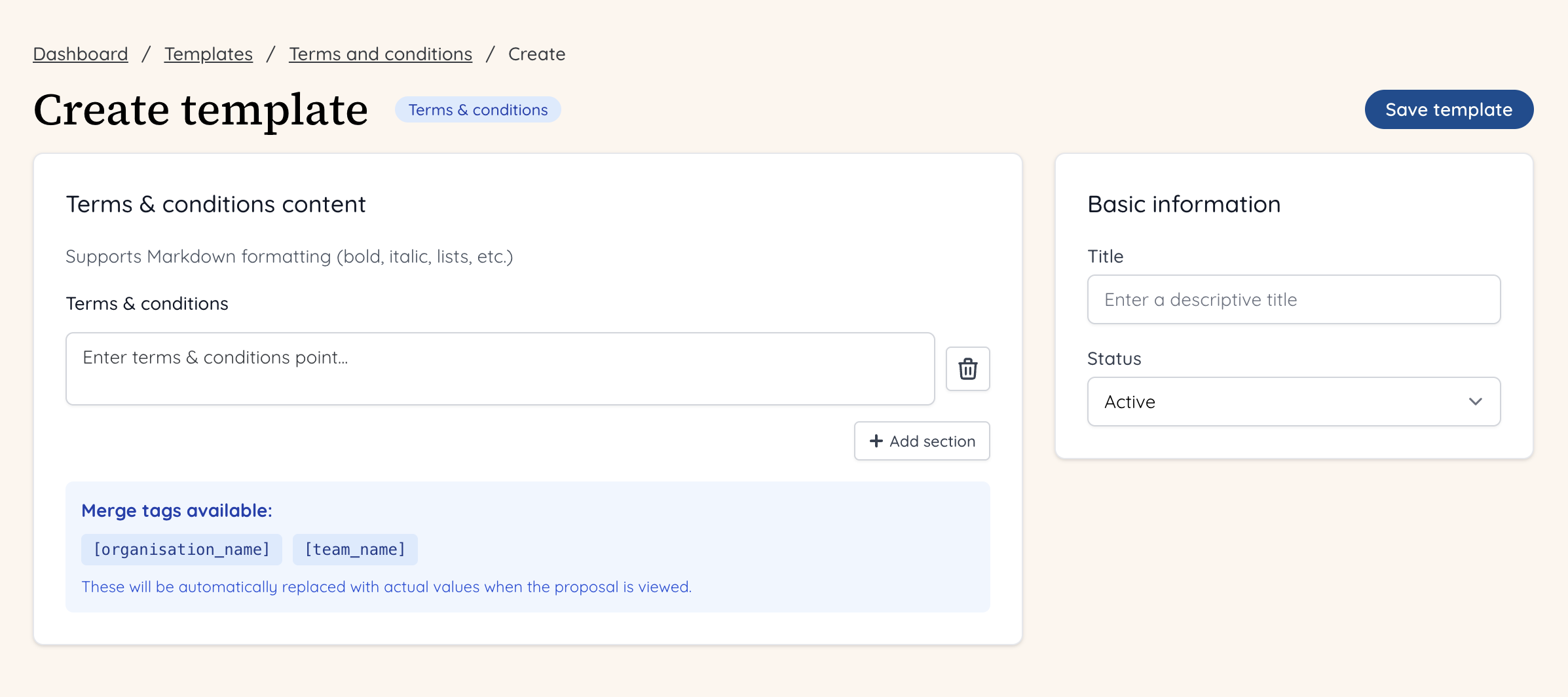
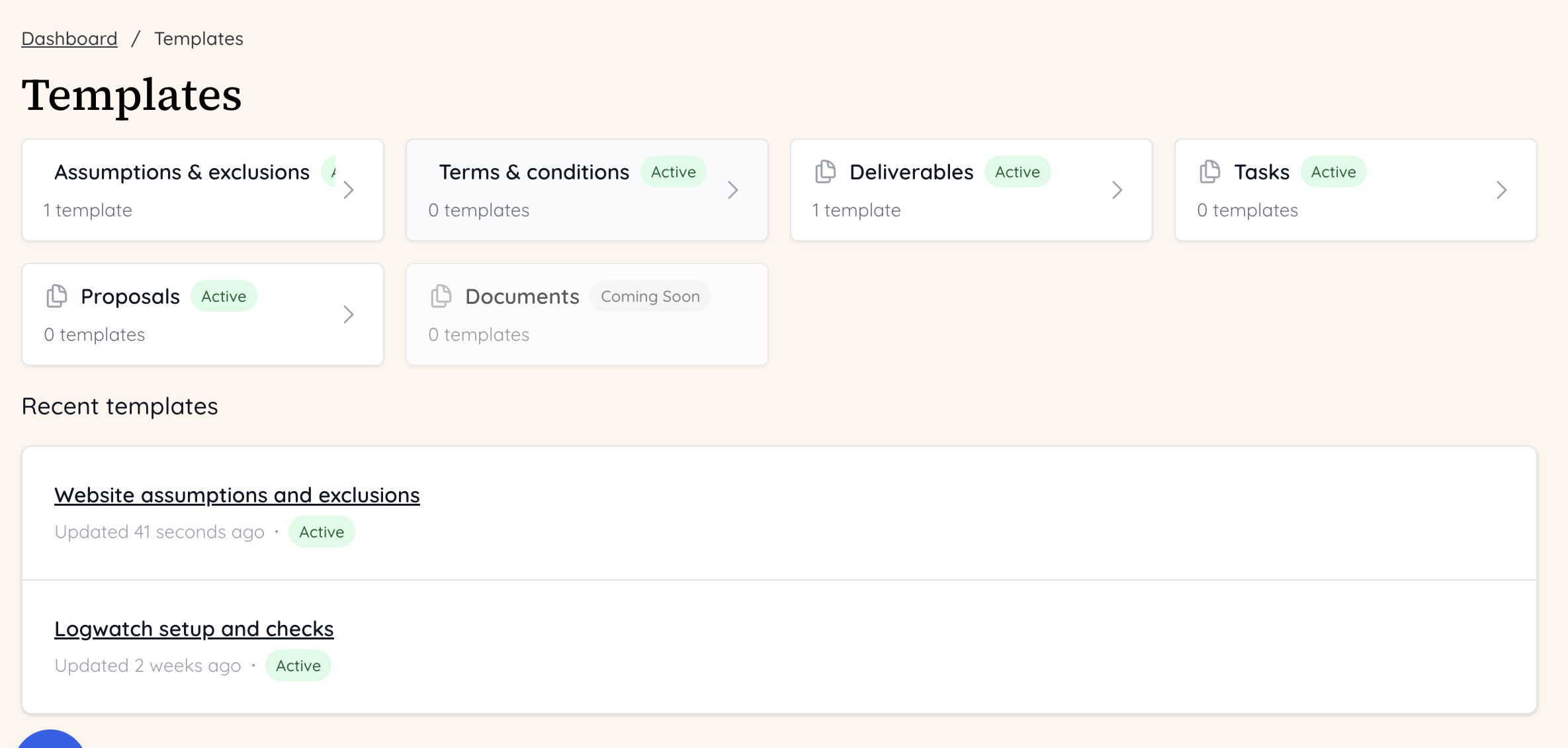 Click on the '+ Create new template' button on the right hand side. You can create as many as you like, as they may be tailored to the work you do - whether it is retainer or a project for example. When you add a template, you can still edit it in the proposal, but having a template ready to go with minimal changes needed will save your team a lot of time!
 Once you have created a template, you can build this out with a number of 'points'. These can be clauses or sections, depending on how you set out your terms and conditions. Once you have filled the first point, simply click '+ Add point' and another text box will appear for the next.
You can add merge tags for the organisation name and your name - these will be replaced with actual text when the proposal is viewed.
Make sure to give your template a title in the 'Basic information' box.
When you're finished, you can click 'Save template'.
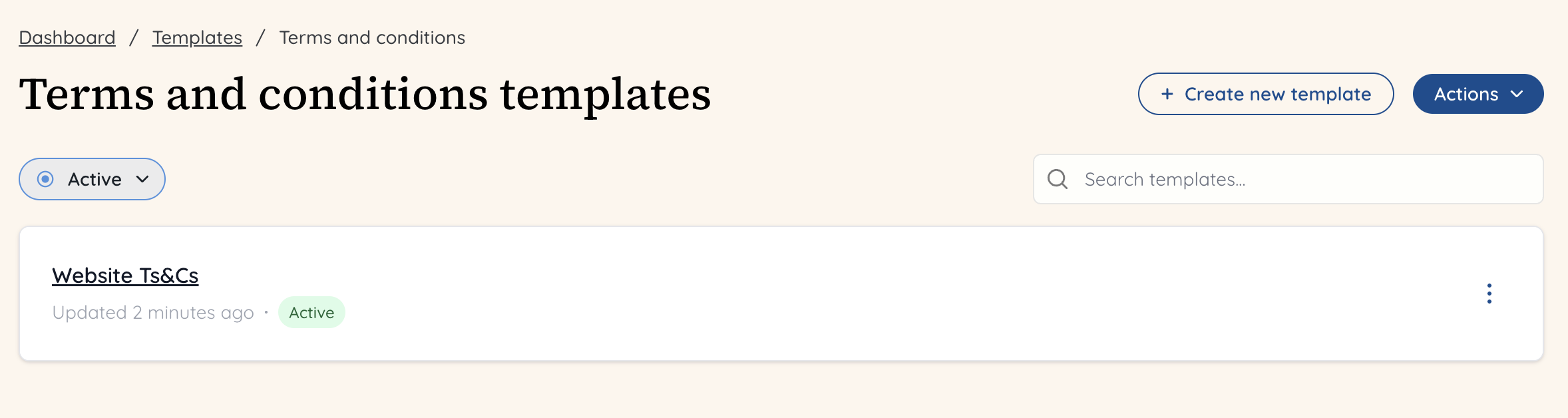
 You will now see this template in your templates section, and this can now be added into a proposal.
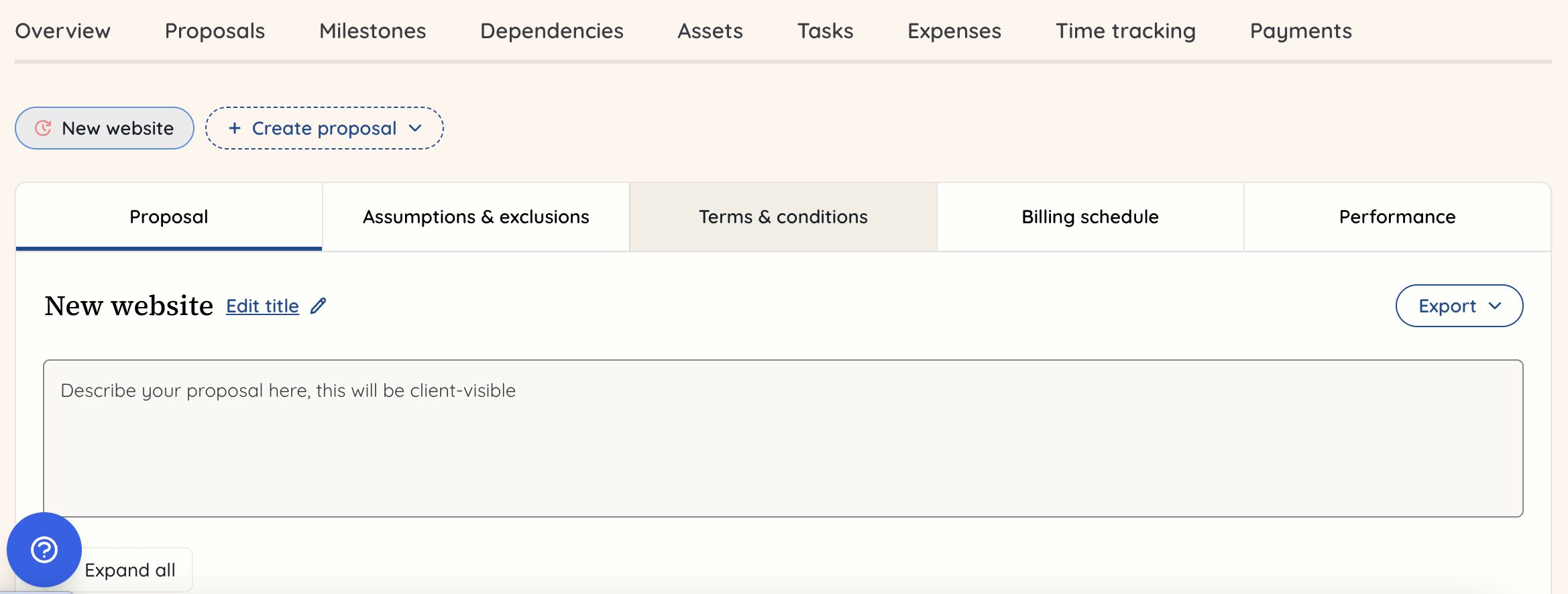
 When you want to add this template into a proposal, go to that proposal, and click on the ‘Terms & conditions’ tab.
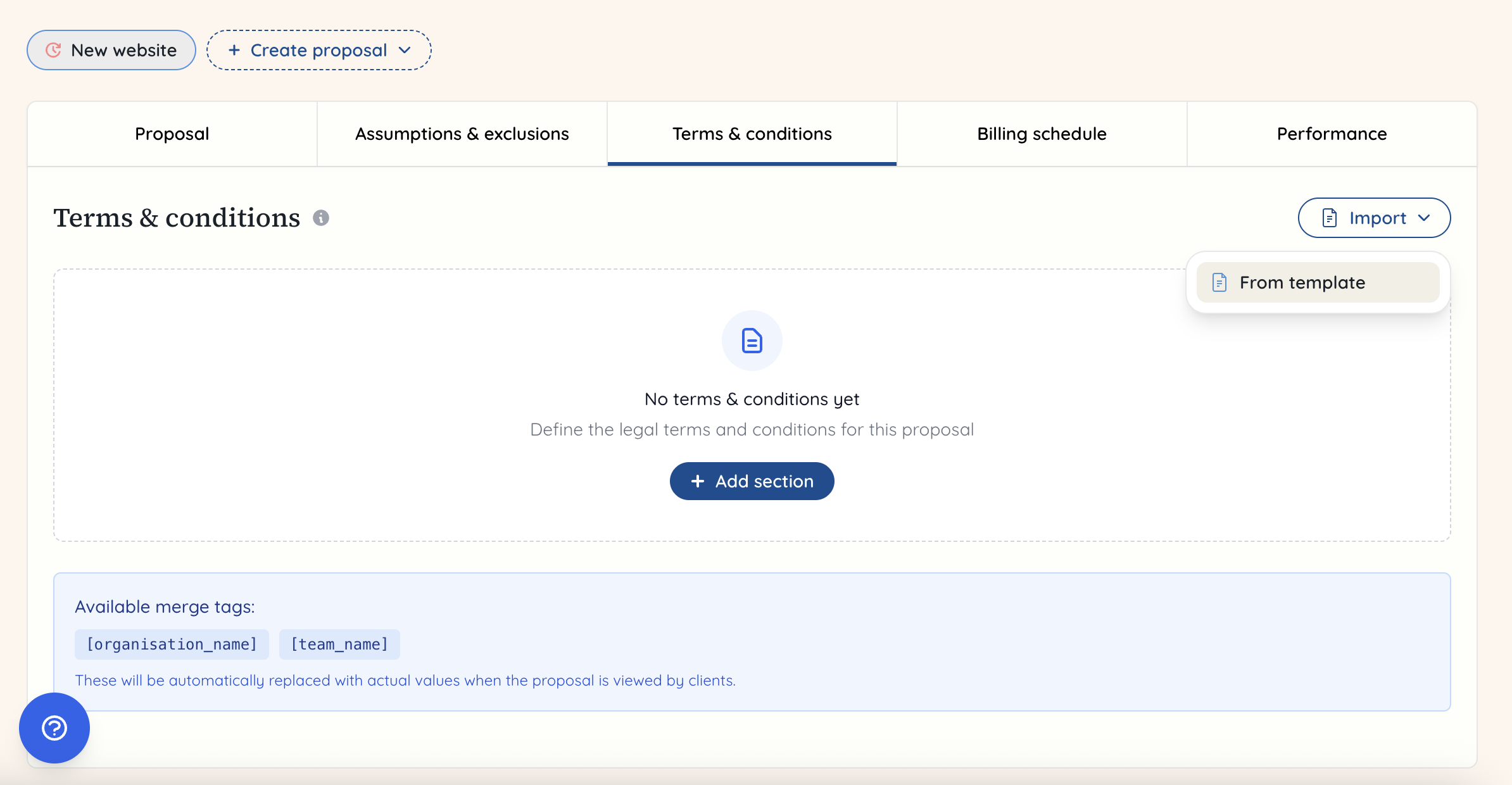
 Navigate to the 'Import' button and click this to show the dropdown 'From template' - click this.
 This will bring up a modal showing you the different templates you have available to choose from.
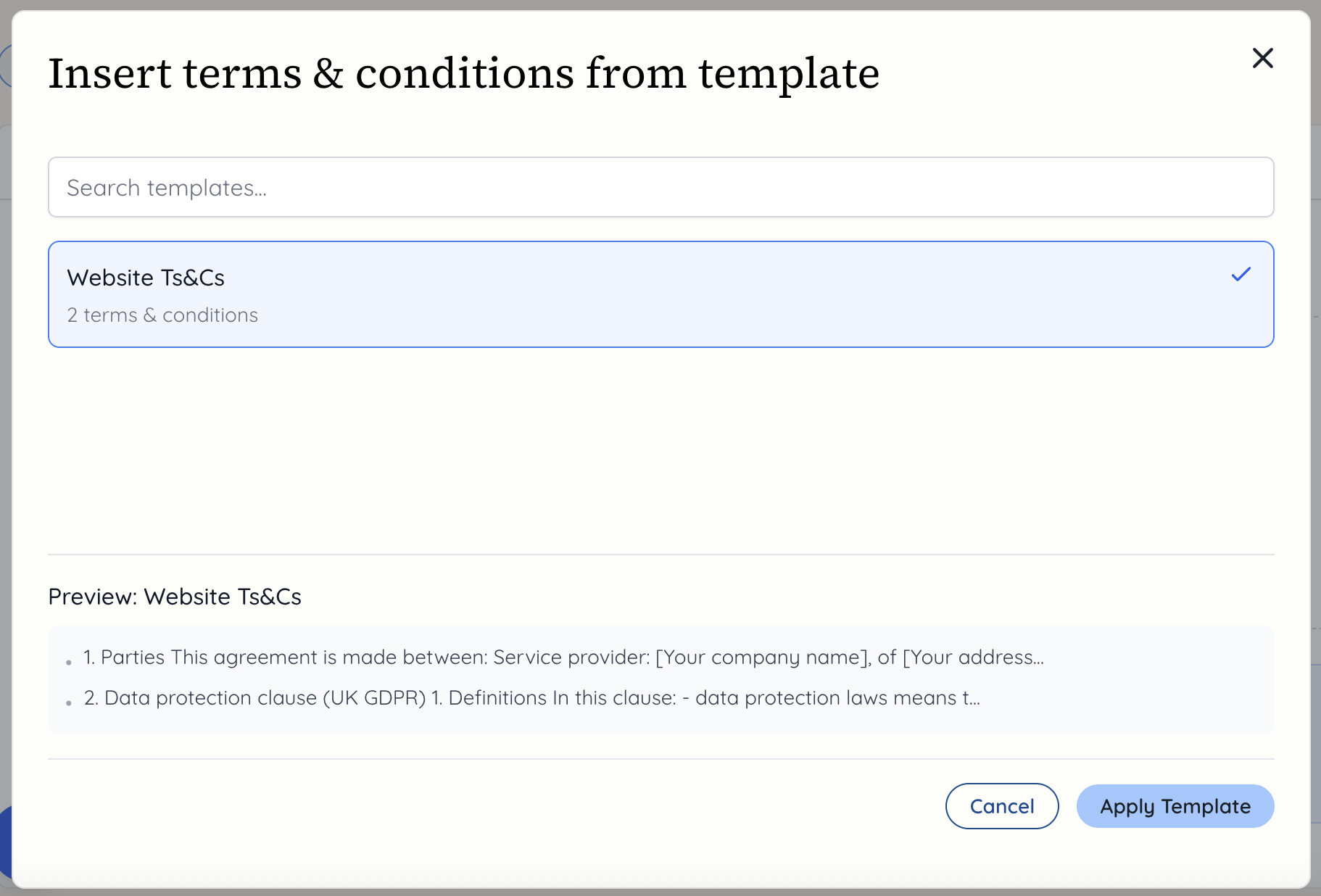
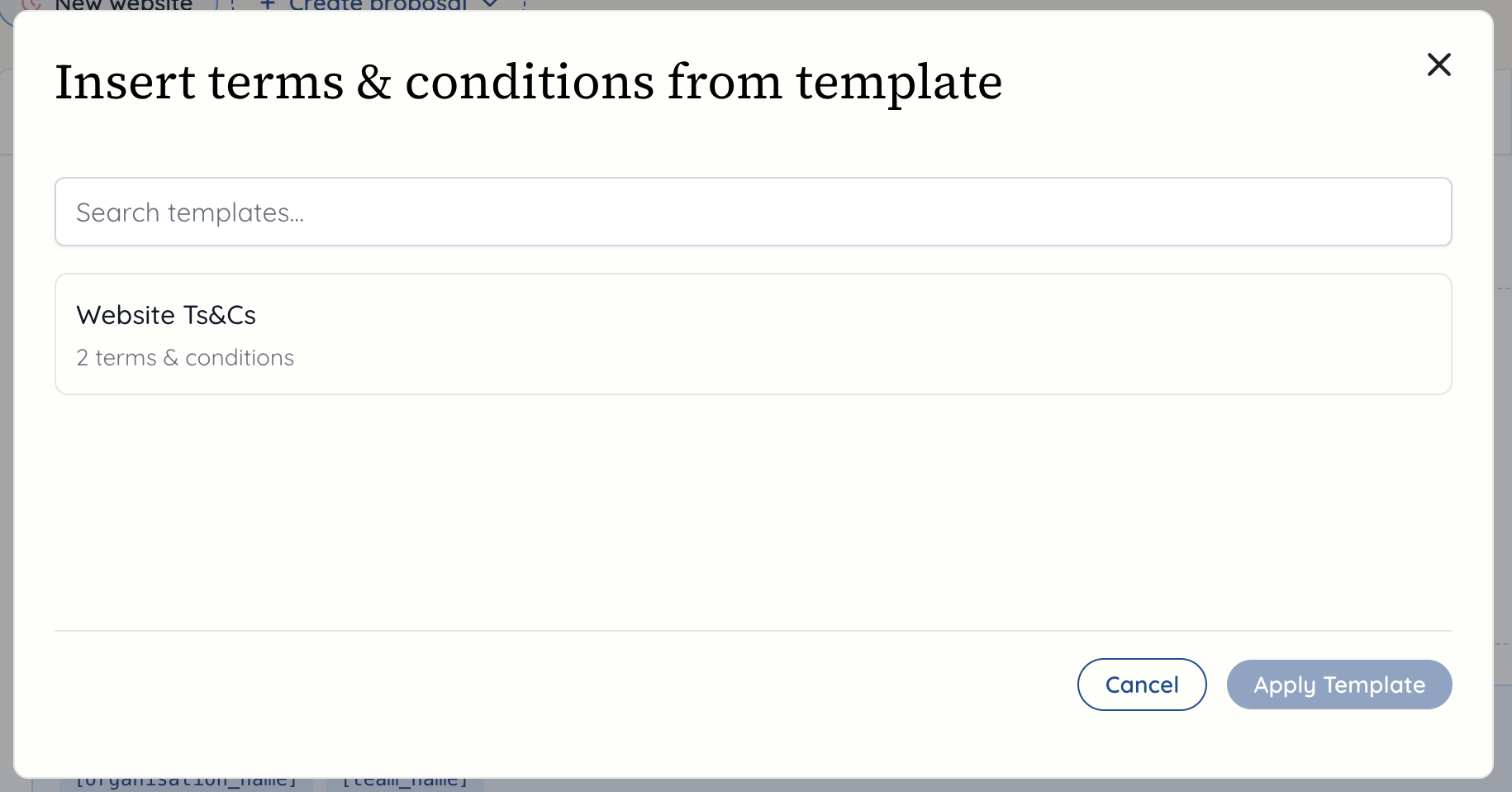 Click on the template you want to import, and it will show you a preview of this. If you're happy with it, click 'Apply template'.
 You can now see your terms and conditions in place in the proposal. You can add extra terms if you need to, or you can edit the terms you have from your template.
When this is shared with the client, they will be able to see the terms and conditions, and agree to them.