Time tracking that lands where the money was agreed
Log time against the task and the proposal line it belongs to, so your hours show what each part of a job really cost.
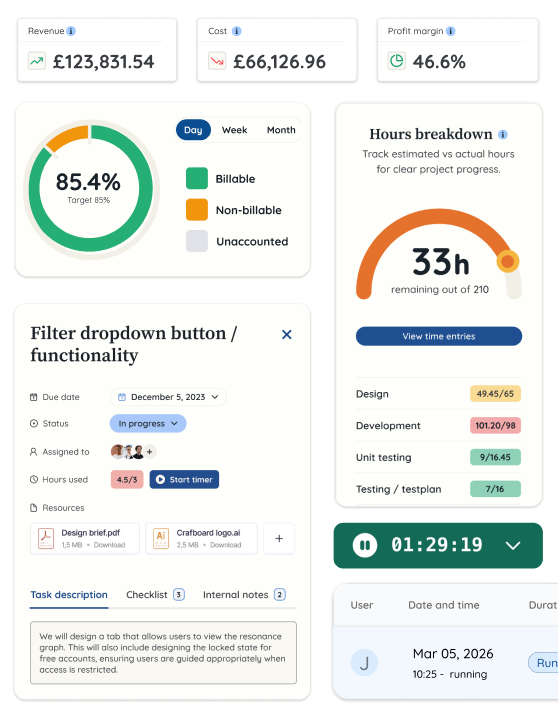
Friday afternoon, filled in from memory
In a lot of agencies, time goes into a separate tool against a project name, if it goes in at all. The week gets filled in on Friday from memory.
So the hours can’t tell you which part of the job they went on. They don’t match the proposal, and they don’t match the plan. Everyone knows the numbers are rough, so nobody trusts them.
In Rofinery, every entry belongs to a project, and the timer starts from the task you’re working on. The hours land where the budget is.
Log it as you go, not on Friday
Two ways to record time, both tied to the work.
A timer that's always there
Start a timer from the header, a task, search or the team calendar. Pick from recent tasks or favourites, and see today's entries with billable and non-billable hours. It stays in step across your browser tabs.
A weekly timesheet, if you'd rather
Fill in a grid for the week, add notes, and copy last week's rows to get started. Your total shows against your capacity, allowing for days off.
Reminders that close the gaps
Switch on end-of-day reminders and Rofinery nudges people whose hours are missing. It also flags a timer that's been running for four hours, and warns when a task is about to run out of time.
Hours that feed the figures
The timer and the entry form log time against a task, and tasks link back to proposal lines. That's what powers budget tracking, over-servicing, utilisation and profitability.
The details that make the hours useful
Small things that save a lot of tidying up later.

Billable time
Set how much of an entry is billable, and whether it goes on the client's timesheet
Tags
Tag entries, then filter your reports by them
Client-friendly descriptions
Give an entry a description your client will understand, with internal notes kept separate
Time for others
With permission, managers can add or correct someone else's time
Private projects
Team-mates see the hours in shared reports, but not the project name, client or task
Import past time
Bring old entries in from a CSV file. A preview flags problems and duplicates are skipped
Project timesheets
Download a project's time as a CSV, filtered by proposal if you need to
Task status on start
Starting the first timer on a task can move it to a status you choose
From your AI assistant
Ask Claude or another connected assistant to log time for you
Where your hours go next
Time isn't the end of the job. It's what the rest of the figures are built from.
Budget tracking
Hours against what you sold, while the project's still running
Planned versus actual
Hours tracked against each person's working pattern, allowing for holidays
Over-servicing
The time given away beyond what clients pay for
Utilisation
How much of each person's time goes on client work
Questions about time tracking
The timer and the entry form both log time against a task, so the hours land where they belong. Every entry belongs to a project.
After four hours, Rofinery sends them an email and a notification, and does it again every four hours until the timer's stopped.
They'll see your hours in shared reports, but not the project, client, task or entry title. Owners, admins and project members see everything.
Yes. Import past entries from a CSV file. A preview flags anything that doesn't match before it's saved, and duplicates are skipped.
Get hours you can actually trust
Or read more about recording and checking time.